> For the complete documentation index, see [llms.txt](https://help.getcustomeriq.com/llms.txt). Markdown versions of documentation pages are available by appending `.md` to page URLs; this page is available as [Markdown](https://help.getcustomeriq.com/start-guide/workspace-setup-guide/crm-properties-and-automation.md).
# CRM Properties & Automation
Your Properties & Automation settings determine how CustomerIQ updates and creates objects and properties in your CRM
After conversation (calls, meetings, emails, and voice notes) CustomerIQ's Object Planner agent determines what to create, update, and associate across contacts, accounts, deals, and tickets - enriching each relevant object with properties from the conversation.
As an admin, you have control over:
* Which object properties get updated
* If the object planner can propose/update objects
* Object change approvals
Let's walk through the configuration for each.
### CRM Property Update Settings
CustomerIQ can update any property across contacts, accounts, and deals in your CRM.
When you connect your CRM with CustomerIQ, we default to use all CRM properties configured within your CRM. If you don't connect a CRM, you an create and track properties directly within your workspace.
#### Connect your CRM
1. Go to [Apps & Integrations](https://app.getcustomeriq.com/settings/integrations) from your Settings page
2. Click configure next to your CRM
1. If you don't see your CRM integration available, you can [request it here](https://www.getcustomeriq.com/contact/support).
#### How to configure properties
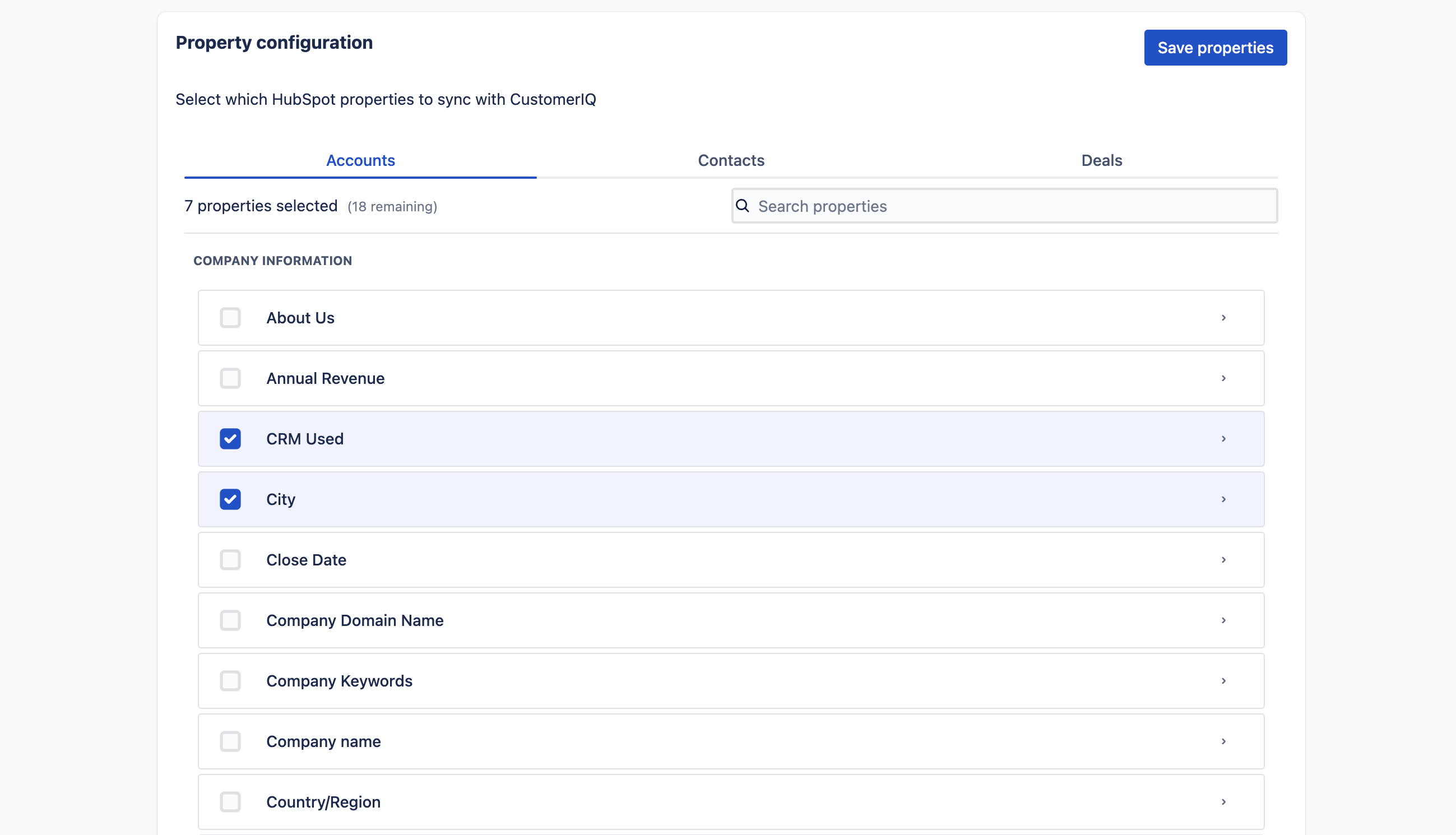
From your connected CRM > Configure > Scroll down to property configuration
**First setup account properties:**
1. Select any property you want updated by CustomerIQ
2. From the property dropdown you can:
1. Update the description: this steers the AI to find the right data, so be clear and concise
2. Toggle if new values should overwrite existing values
The description is what guides the AI to find the right data, so make this as specific as possible.
**Next, repeat this step for contact properties and deal/opportunity properties**
{% hint style="info" %}
**Note**: When mapping a property to a CRM field that is a dropdown, multi-select, single-select, etc. CustomerIQ will automatically adjust the AI to only return values according to available values in your CRM. To setup these properties, add it to the contact or account field and move to the next step.
{% endhint %}
### Object Planner Approval Settings
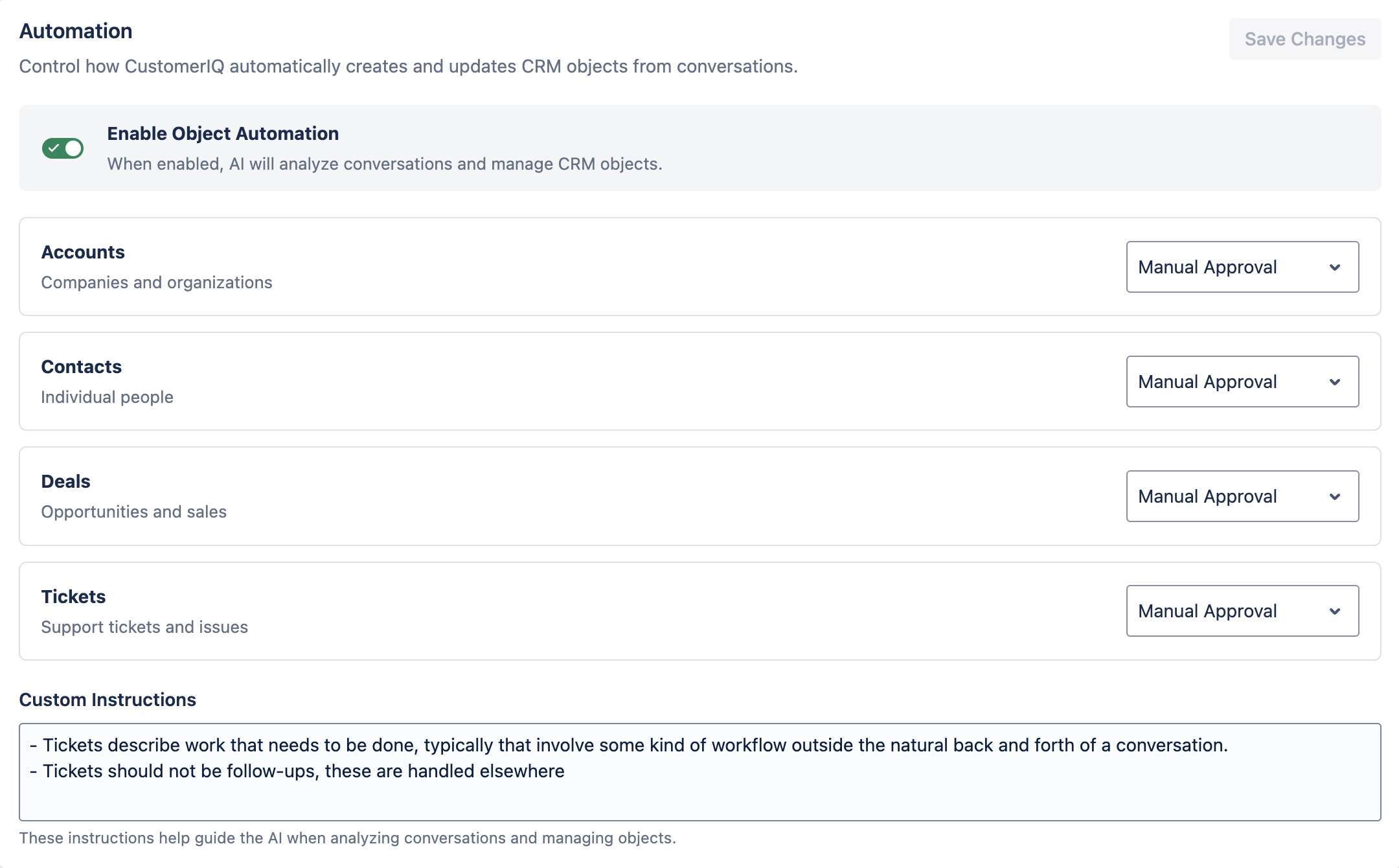
With the Object Planner enabled, you can set which objects require user-approval before changes are made.
Definitions:
* **Automatic**: Any change proposed by the object planner will be automatically accepted. This setting makes your CRM full-self-driving
* **Manual Approval**: The object planner will propose updates to the user who created the conversation. Admins can also review and approve these changes from the conversations tab
* **Off**: The object planner will ignore this particular object and not suggest any changes
If you choose to have users manually approve changes, make sure they are familiar with their [notification settings](/start-guide/user-setup-guide/notification-settings.md) and ready to approve changes as they're proposed.
#### Custom instructions
Custom instructions help admins guide the object planner to follow your internal procedures more closely. For example, you can add notes on what constitutes creating a deal or ticket, or how specific you want object associations to be.
Instructions should be concise and leave room for edge cases. An example of a good instruction would be: "Create deals only if the sales rep mentions sending over a quote" or "Create a ticket only if there is work to be tracked outside the scope of this conversation"