> For the complete documentation index, see [llms.txt](https://help.getcustomeriq.com/llms.txt). Markdown versions of documentation pages are available by appending `.md` to page URLs; this page is available as [Markdown](https://help.getcustomeriq.com/start-guide/user-setup-guide/my-assistant.md).
# My Assistant
CustomerIQ's AI assistant integrates with your calendar and email to capture meeting context, take notes, draft emails, and automate administrative tasks.
This guide will walk you through:
1. **Connecting Your Calendar and Email**
2. **Adjusting Settings** for email, meeting recordings, auto-join, and meeting recaps
***
### 1. Connect to Google or Outlook
1. **Connect your calendar and email suite**
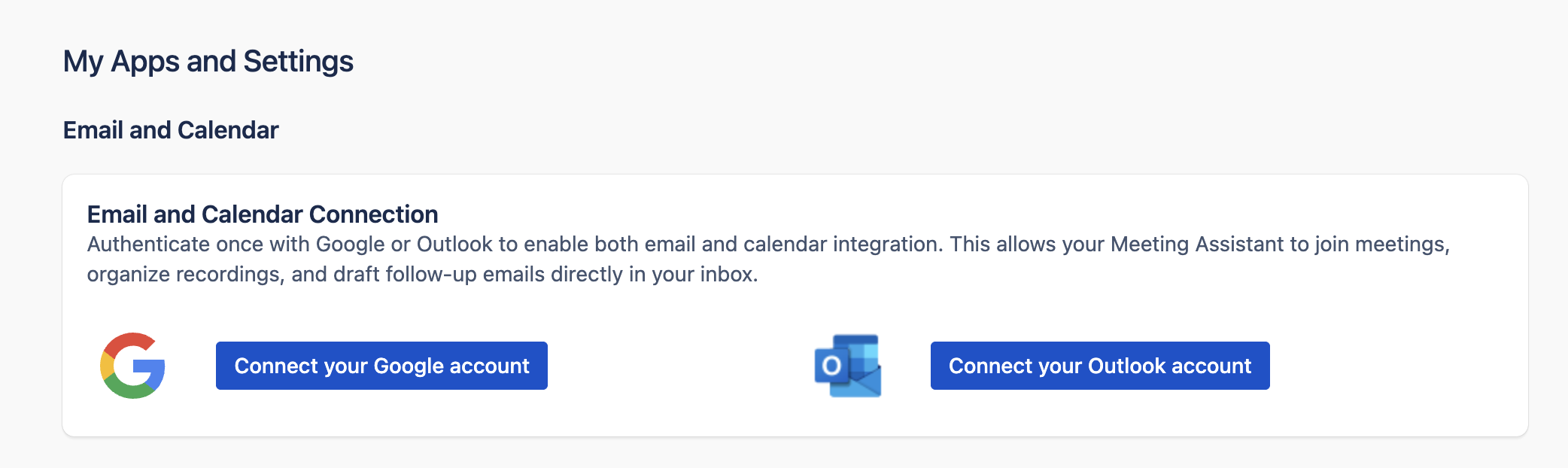
1. From [Settings > My Apps](https://app.getcustomeriq.com/settings/my-apps) connect either your Google or Outlook account
2. **From your inbox, enable Conversation View** \
Enabling Conversation View organizes your emails by threading messages and drafts CustomerIQ adds together, making it easier to follow discussions and quickly send drafts.
{% hint style="info" %}
**Important: Enable Conversation View**
For the email assistant to work properly, please set your inbox to **Conversation View**.
How to enable in Gmail
1. **On a Computer:**
1. Open Gmail
2. At the top right, click the **Settings** gear icon and then select **See all settings**.
3. In the **General** tab, scroll down to the **Conversation View** section.
4. Select **Conversation view on.**
5. Scroll to the bottom and click **Save Changes**.
**On an Android Device:**
1. Open the Gmail app.
2. Tap the **Menu** icon (three horizontal lines) in the top left corner, then select **Settings**.
3. Tap **General settings.**
4. Check the box for **Conversation view** to enable it.
**On an iOS Device:**
1. Open the Gmail app.
2. Tap the **Menu** icon (three horizontal lines) in the top left corner, then select **Settings**.
3. Tap your account.
4. Toggle **Conversation view** on.
How to enable in Outlook
**For Classic Outlook:**
1. Open Outlook and go to the **View** tab on the ribbon.
2. Check the box labeled **Show as Conversations**.
3. Choose either **All mailboxes** or **This folder** to apply the setting accordingly.
**For New Outlook:**
1. Click on the **Settings** icon (gear-shaped) at the top of the page.
2. Select **Mail** and then choose **Layout**.
3. Under **Message organization**, select **Show email grouped by conversation**.
**For Outlook on the Web or Outlook.com:**
1. Click on the **Settings** icon at the top of the page.
2. Select **Mail**, then choose **Layout**
3. Under **Message organization**, choose **Show email grouped by conversation**
{% endhint %}
***
### **2. Configure your meeting settings**
Determine how the assistant should help during meetings
1. From [**Settings > My Apps**](https://app.getcustomeriq.com/settings/my-apps#), scroll down to the Meeting section
2. **Set your auto join settings:** We recommend all users start with "All meetings with web conference link" to start so you capture as much context for the assistant as possible
3. **Set your default folders:** This determines where meeting transcrips and voice notes should go by default for analysis. We recommend sending meeting transcripts to a folder associated with your team. \ **Reminder**: any meeting the AI determines to be "private" will be automatically routed to your private folder, even if your default folder is set to a workspace folder. [Learn more about private meeting routing](/product-guides/folders/private-meeting-routing.md)
4. **Enable email behavior**: the assistant has the capabilities to categorize emails, draft replies, and draft meeting-follow ups - all directly in your inbox. You can toggle these settings on and off here.
***
### 3. Configure your email settings
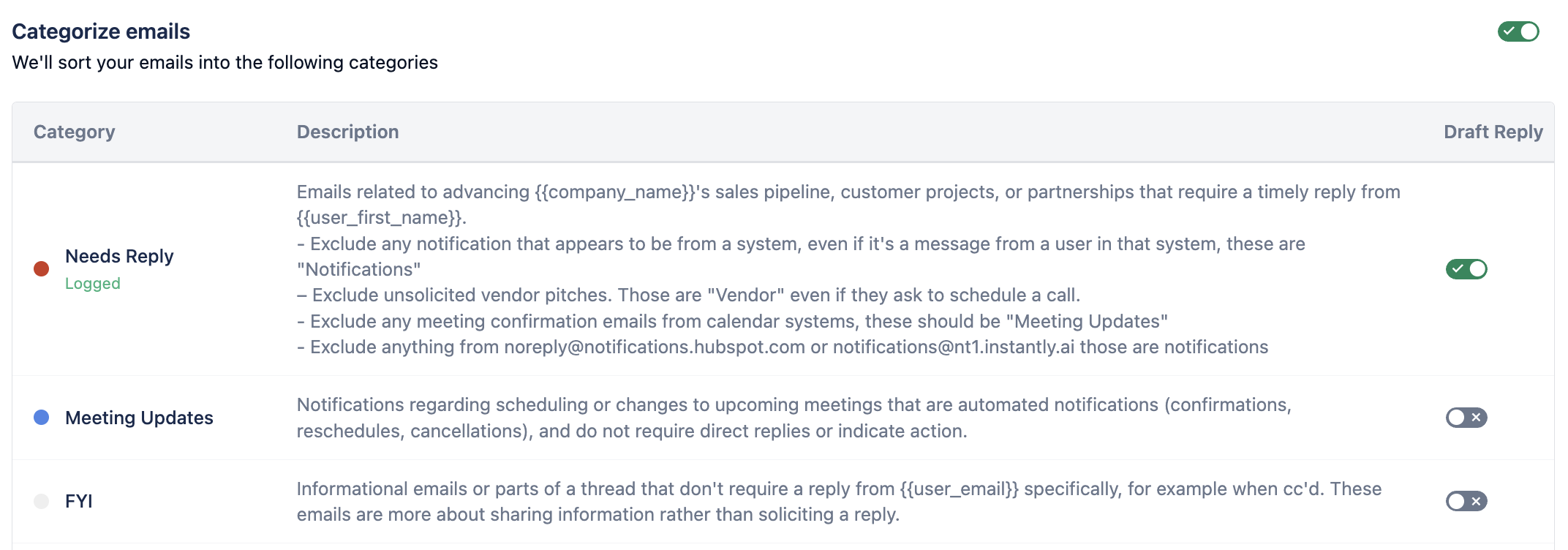
Control which types of emails get AI-drafted replies based on the categories your admin has set up:
**For each category, you can choose:**
* **Draft Reply ON**: AI will automatically create response suggestions
* **No Drafting**: AI will categorize the email but won't draft responses
**How to configure:**
1. Toggle drafting on/off for each category
2. Changes apply to new incoming emails immediately
***
### 4. What to expect
#### First Few Days
* The AI learns your writing style, so early drafts may need more editing
* Category accuracy improves as it processes your emails
* You might need to adjust which categories should draft replies
#### Daily Use
* Emails categorized within 1-2 minutes
* Draft replies ready in 2-5 minutes (when enabled)
* Simple emails need minimal editing; complex ones need more review
#### Performance Over Time
* Categorization accuracy: 85-95% for well-defined categories
* AI gets better at matching your tone with use
* High-volume categories work more consistently than rare ones
#### Getting Better Results
**If emails are frequently miscategorized:** Ask your admin to improve category descriptions with more specific instructions and examples in Settings > Inbox Categories.
**If drafts don't match your style:** Keep editing them - the AI learns from your changes.
#### Best Practice
Start with auto-drafting enabled for only your most routine email types, then expand as the system learns your preferences.
***
### 5. Test your assistant
1. **Check your workspace** [**Home Page**](https://app.getcustomeriq.com/home)**:**
* Your upcoming meetings and the Meeting Assistant status should now be visible on your CustomerIQ home page.
* This confirms that your assistant is live and ready to join meetings.
2. **Send yourself a test email**
1. From a different email address (not the one connected to CustomerIQ) send yourself an email similar to one you'd get from a prospect or customer where you would expect to reply. For example\
**Subject:**\
Quick question about CustomerIQ\
**Body:**\
Hi \[Your Name],\
I’m testing the AI assistant and wanted to see how it handles this email. Can you confirm if everything is working as expected on your end? Also, do you have time next week for a quick sync?\
Let me know.\
Thanks,\
\[Your Name]
3. **Test meeting follow up emails**
* Start a meeting with your chosen provider (Zoom, Google Meet, MS Teams)
* Copy the link to invite a participant to the meeting
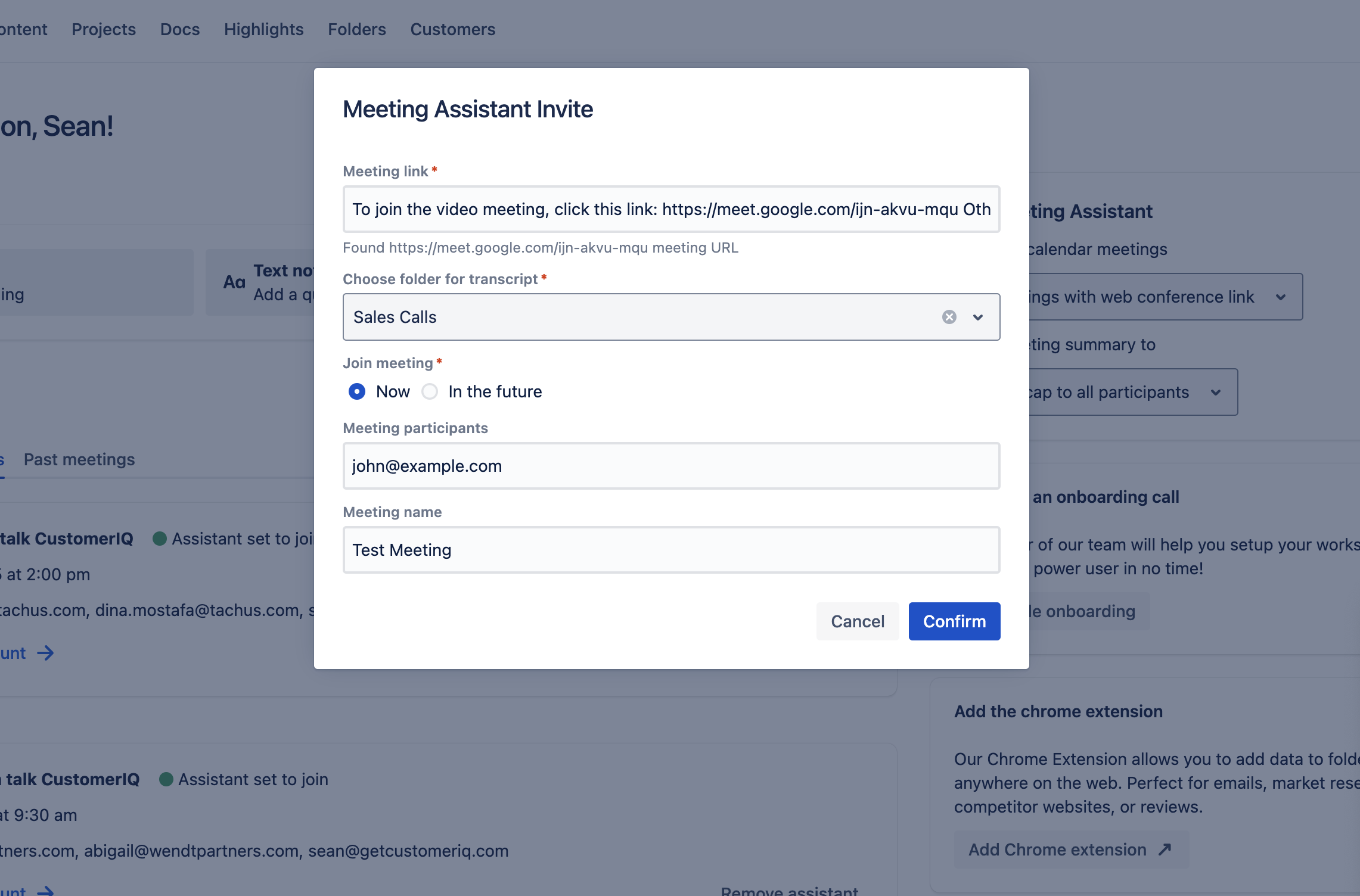
* From your CustomerIQ home page, select "Join my meeting"
* Paste in the link to the meeting
* Add a participant (this can be any email - this is the email for which the agent will draft a follow up)
* Speak a few words in the meeting, then end the meeting.
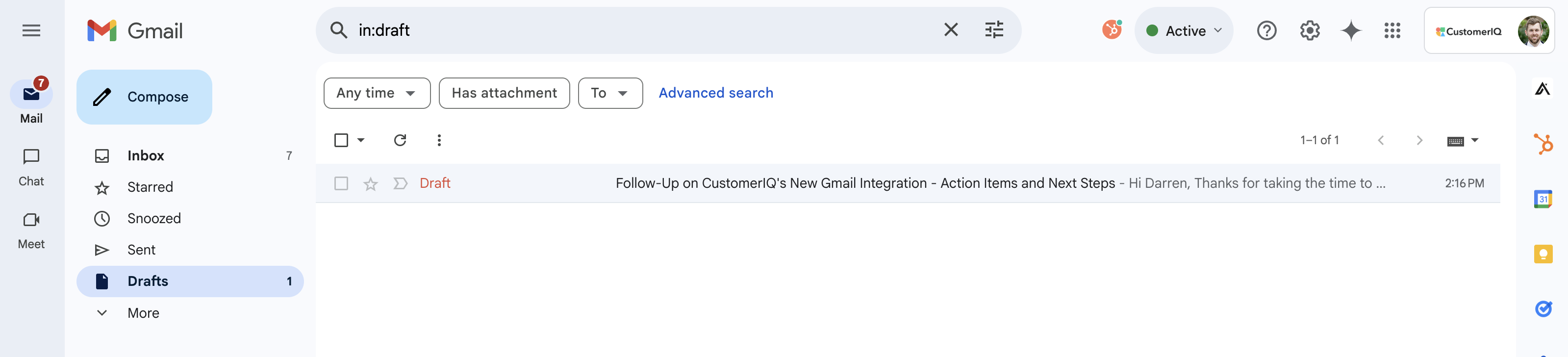
* Check your inbox for a follow up email and summary!